
The new professional photo manager from Phase One that makes it easier to manage your digital assets.
Media PRO is based on iView Media Pro and Microsoft Expression Media. Owners of previous versions can easily upgrade to Media Pro
Media Pro is a professional photo manager that makes it easy to manage your photo and video assets. Built to be fast and intuitive, it is a powerful photography assistant that will supercharge the way you find, organize, and share your images and videos wherever your files are stored. Media Pro supports photo and video files from more than 100 different cameras and is built to manage large photo libraries (especially very large raw, tiff and jpeg files).
Non-destructive local adjustments let you edit selective parts of an image for unlimited creative control and results. You can handle the most common retouch jobs in a few simple strokes to control Colors, Exposure and Sharpening in targeted areas of an image. Capture One Pro 6 also uniquely enables localized control of Moiré.
This powerful tool can quickly transform warped captures into natural looking images with a photographically correct perspective. This tool is particularly useful for correcting the verticals of a building that has been captured at a low angle.
Convert your images to black-and-white with powerful sliders that let you precisely adjust the color channels and create split toning effects when you convert to grayscale.
Use your iPad, iPhone and iPod Touch to view, zoom and pan high-res DSLR and medium format RAW, JPEG and TIFF images while you shoot and get instant feedback from clients and colleagues.
The Metadata tool enables you to read, update, and modify valuable information at any point within the production process. The latest version adds XMP sync and Auto Load as well as a GPS link to Google Maps™. Capture One provides wide support for exchange of metadata between applications.
Take advantage of your display to get a big, unobstructed, full-screen view of your work. Make adjustments and compare them side-by-side.
The Loupe Tool is a powerful magnifier that enables you to zoom into an image from 25% to 200%. It can be used to quickly check focus or view close-up details of a selected image or any thumbnail in the Image Browser.
Capture One provides a powerful renaming tool that enables you to create customized, token-based naming systems with ease. Choose your own combination of text and tokens to create a bespoke naming system and apply it to an individual photograph or a group of images. Save your naming selection as a preset for future use and to ensure naming consistency.
Album folders are virtual collections that offer an easy way to organize images from different folders, without having to create duplicate images in the same folder. Smart Albums are populated automatically by images that match the album's criteria. Capture One comes with a selection of Smart Albums that are already set up in the library. You can also create your own Smart Albums.
Import, browse and play back video clips, including HD video, from digital cameras. (Movie files are not editable).
Search and Filter makes it easy to find, sort and organize images from a selected collection in a folder, session folders, album or smart album. Resulting images are displayed as thumbnails in the Image Browser.
Showcase your work in creative formats using customized print layouts. Customize the margins, crop to match the aspect ratio of your paper, and add borders in custom widths and sizes. Take advantage of the colormanaged print engine for reliable color rendition. Include watermarks and add metadata to prints.
Create a slideshow and showcase your images in a single keystroke. This feature can integrate both still images and video files and it incorporates a selection of slick fades and transitions.
Tethered Capture
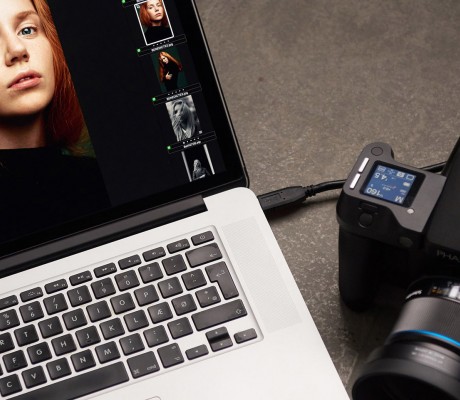
Capture One PRO lets you shoot tethered with your Phase One digital back, selected Leaf and Mamiya digital backs, and with Canon or Nikon DSLRs, which means that you are capturing images directly into your computer without any interim storage. Tethered Capture allows you to check the exposure using the exposure evaluation histogram and meter and to use composition mode to prepare for a tethered session without using up space on your hard drive.
Live Preview - Enhanced
Speed up image composition, lighting, and focusing with Live Preview. Makes it possible for the photographer, art director, client, and others to easily view an image on a computer screen at the same time, in real-time. Especially useful with technical cameras. Live Preview is now available for both Mac and Windows and comes with improved performance.
Focus Mask
Accelerate your image selection by using the Focus Mask for fast verification of image sharpness and focus. The Focus Mask is applied both to the image(s) in the viewer and to the thumbnails in the image browser. The Focus Mask is perfectly suited for portrait, wedding and fashion shoots.
Focus Tool
Get an instant, true view of image sharpness with the Focus tool. Use it as part of your fixed tool tab or drag it out as a floating tool.
Workflow Accelerators Enhanced
Handle large volume shoots even faster with new and enhanced workflow accelerators. New functionality includes: new preference to disable JPEG/TIFF editing, aspect ratios available directly from the crop cursor tool, Auto icon and Style Selector items for the toolbar, as well as "Edit All Selected" feature which makes it possible to instantly perform adjustments on multiple images.
Camera Support - Enhanced
Capture One supports image files from the most popular DSLRs from Canon, Epson, Fuji, Konica Minolta, Leica, Nikon, Olympus, Panasonic, Pentax and Sony, as well as Phase One digital backs and selected Leaf and Mamiya digital backs.
Workspaces, Tools and Tool Tabs Enhanced
Customize your Workspace, Tools and Tool Tabs to make your personal workflow more efficient. Included in Capture One is a selection of best practice default workspaces.
Viewer Margin and Proof Margin
Improve evaluation of image composition and colors by setting a viewer margin (and proof margin).
Library
The Library tool allows access to the images within the Albums you have created as well as to any image collections you have stored in folders on a computer or networked resource. You can easily browse through the image collections thanks to the hierarchical tree structure of the library, and it is possible to start work on images in your folders without importing them first.
Importer
The Import window offers a range of options to make importing a quick and straightforward task.
Sessions
Use Sessions to organize your captures. When working on client projects, as many professional photographers do, it is natural to store the files you are creating as a complete project, instead of storing as separate files -- especially when your work will often consist of RAW files, setting files, library files and output files. When saving a session you will also automatically create a session file. This file will re-open the session and provides you with an easy way to access your projects.
Adjustments Clipboard
Use the Adjustments Clipboard to copy setting from one image and apply them to a group of images. The clipboard enables you to apply either all adjustments to a selected group of images or only to apply a subset of the changes.
Local Copy and Apply
Easily copy and apply individual image tool adjustments to other images and save time. Completely integrated with the Adjustments Clipboard for a seamless experience and improved efficiency.
Rating and Color Tagging
Rating your images offers a way to quickly find just the photo you want. Rating is available from 1 to 5. Use color tags to add another dimension or as an alternative. Ratings may be applied fast via keyboard shortcuts.
Albums
Album folders are virtual collections that offer an easy way to compare images from different folders, without having to place the images in the same folder. Albums take up little space as they reference only images from folders, they do not copy them.
Favorites
Add your regularly used folders under favorites to gain quick access. Favorite folders are cached, which means that it is faster to access images stored in Favorites.
Batch Rename
Quickly rename groups of images and easily apply naming rules to individual photos or groups with Batch Rename.
Multi-monitor - Enhanced
Support for multiple monitors enables you to configure your workspace to manage image workflow and presentation more efficiently. The new Preview Image Size Preference allows a better and faster workflow when using large screens.
Variants
Variants enable you to create virtual copies of your original image without taking up more than a few kilobytes of hard-drive space. Experiment with different settings or modify the work you have done on an image without risk.
Grids and Guides
Use grids and guides for instant alignment check in your image composition.
Skin Tone Enhancer
Achieve perfect, smooth and soft appearing skin tones with the Skin Tone Enhancer.
Spot Removal
Easily remove spots and dust spots with a single click. Spot Removal is the fastest and most efficient way to remove imperfections in images. Dust spot removal allows you to select a group of images and remove dust spots from all images with just one click.
RGB Levels and Curves
RGB Levels and Curves provide a tool, which enables you to adjust individual color channels easily and to be creative with colors.
Exposure
Use the exposure tool to adjust exposure, contrast, brightness and saturation in your image.
White balance
Achieve your desired white balance with Capture One's advanced white balance tools. With the built-in auto white balance feature, the image will automatically be corrected by the software. With the white balance picker you are able to select an area of the image that looks neutral (a grey or dark white area if possible) and use this information to map all other colors. Use the Skin Tone white balance tool to achieve exact skin tone colors.
Advanced Lens Correction
Explore an easy way to fix classic optical issues like distortion, light falloff, vignetting and purple fringing. The Lens Correction tool corrects optical artifacts like: Chromatic Aberration, Purple Fringing, Geometric Distortion, Sharpness- & Light Falloff and vignetting. If your lens is already known by Capture One, a default lens profile is chosen.
LCC based Light Falloff
With LCC based Light Falloff you are able to even out color and intensity differences in the light and compensate for lens fall off.
Creative Vignetting tool
Add vignettes to the edges of your images for artistic effect (follows crop).
Advanced Color Editor - Enhanced
Adjust colors in a smooth way with the Color Editor – and keep changes all natural with Smart Saturation. You have the opportunity to adjust colors either in larger areas using the basic tool, or select a narrow color space in the advanced color editor tool. The Color Editor can also be used to tweak ICC color profiles. The new Inverted Color Editor Selection is perfect to create an image which is almost monochromatic but emphasizes one or more colors.
Color Balance
The Color Balance tool allows you to fine tune hue and saturation in your image.
Styles
Apply creative styles to your images and experience an easy way to be consistently creative with RAW images. Styles can be used as a unique way to apply black and white as well as blue tone and sepia effects for images. The consistency of the effect is predictable and easy to reproduce in future images. You are able to adjust all Styles after they have been applied to the individual image. Styles can be combined and with Styles you are able to imitate the effects of classical chemical film and processing methods.
High Dynamic Range tool
Use the High Dynamic Range tool to recover shadow or highlight detail.
Moiré Suppression tool
Effectively remove Moiré from your images with the Moiré Suppression Tool. Moiré removal is performed directly on the raw data. Image quality is kept intact and you save hours of post-production work.
Crop
Cropping an image can be done freehand or with the constraints of specific ratios. Several grid and guides options are provided to make it easy to get the composition right. A number of options to display labels with dimensions related to the selected output destination keep you informed about the size of the final output.
Rotation
The Rotation tool enables you to rotate an image by using advanced precision tools.
Overlay
The overlay tool provides advanced composition assistance allowing you to place any image as an overlay in the viewer, making it easy to match a certain layout. The opacity, scale and placement can be updated live.
Sharpening
With Capture One you get a range of sharpening presets, formulated to provide a good starting point for sharpening images for the most general purposes. By default, the sharpening settings have been configured to provide a good looking image on a screen.
Noise Reduction
You are able to remove luminance and color noise from images using the color and luminance noise reduction sliders.
Advanced Noise Reduction
Surface Smoothness helps you to gently smooth surfaces of similar color. E.g. car paint can be made to appear smooth while preserving the edge sharpness in the rest of the image. Fine Grain assists you to make high ISO images that appear too "processed" look more natural through introducing a small amount of fine grain into the processing. Used in combination with Surface Smoothness, this may significantly increase the quality of high ISO images.
Clarity - Enhanced
Use the Clarity Tool to improve hazy images by adjusting local contrast and a small amount of sharpness. The tool now allows negative clarity values, which helps you to smooth out local contrast in portrait images.
Process Recipes
Continue to work while you process high-volume shoots in the background to several output formats using unique recipes for each format. A process recipe consists of a selection of options to create and output images as required. Images can be processed from Capture One as TIFF or JPEG files, with options for file compression, bit depth and color space, in addition to the normal options for resolution and size. It is possible to output images using different recipes simultaneously.
Batch Queue
With the Batch Queue you are able to see which images are in queue for processing and which images have been processed previously within the Batch tool tab. You can change the order of processing by drag-and-drop.
Metadata Editing - Enhanced
In Capture One, metadata refers to data that describes your image and how it was taken. The metadata tool adds multiline fields, GPS information, control of what metadata are included in processed files and a new preference which determines how to handle conflicting metadata during load.
Watermark
Enhance image rights protection and watermark your images. You are able to add a watermark with your logo or other information to every photo you output.
EIP Enhanced Image Package - Enhanced
Enhanced Image Package is a convenient way of packing your master file for smooth cooperation with your customers. When the .EIP file is opened by Capture One on your client's computer, the image file will be seen exactly as you created it. The original untouched RAW file will be packed with your setting file and LCC profile. You also have the option to include ICC camera profiles in the .EIP package. EIP support now includes all RAW file types that are supported by Capture One. This includes DSLR and Leaf image files.
Web Contact Sheet - Enhanced
Share your images easily. With the Web Contact Sheet you are able to generate all the thumbnails, full sized previews and HTML code required for the finished contact sheet. All the elements are stored on the desktop in a single folder for uploading to a website or sending to clients. The Web Contact Sheet now supports larger image sizes.
CMYK Support
Capture One Pro can output to any RGB and CMYK color space. With a selection of the most common CMYK color spaces you are able to secure the quality of the image by performing the conversion yourself and not leave it to post production.
Proof Profile
Soft proof your colors against a specific output device by selecting the appropriate ICC profile as Proof Profile. Proof Profile is integrated with the process recipes in order for you to easily proof each different type of output.